Foundations of Malware Analysis and Its Role in Evidence Discovery
Learn the foundations of malware analysis and Windows forensics, then follow a RAT from static and dynamic analysis to Prefetch, Amcache and Registry evidence
Foundations of Malware Analysis and Its Role in Evidence Discovery
When a suspicious file lands on a machine, two questions matter most: what does it do, and what did it leave behind? Malware analysis answers the first. Windows evidence discovery answers the second. In this post, I’ll walk through the foundations of both, and then show them working together in a proof of concept using a Remote Access Trojan called Evil.exe.
Here’s what we’ll cover:
What is malware?
What is malware analysis, and why do we need it?
How to handle malware safely
Techniques used to analyse malware
Tools used to conduct malware analysis
An explanation of the Windows Registry
Important artifacts for evidence of execution
What Windows evidence discovery is
Tools used to discover and extract these artifacts within Windows
What is malware?
Malware, which stands for “Malicious Software”, is any code or program designed to damage, exploit, or gain unauthorized access to computers, networks, or devices in general. A virus is a type of malware that attaches itself to legitimate programs, often damaging or disrupting your computer’s performance.
The difference between the two is that malware is created to do harm to a computer, while a virus is a type of malware that copies itself to spread to other files, programs, or computers. This is a common grey area when explaining the two, so I usually go off this saying: “Not all malware are viruses, but all viruses are malware.”
Different categories of malware
Ransomware - Ransomware is the type of malware that locks the files across your whole computer and demands money (a ransom) to unlock them.
Spyware - Spyware secretly watches what you do on your device and sends that information to someone else.
Trojan - A Trojan is malware that pretends to be something safe or useful to trick you into installing it. Just like the Trojan horse in Greek history, where soldiers hid inside a hollow horse outside the city of Troy. The Trojans brought it inside, and during the night, the Greeks attacked.
Remote Access Trojan (RAT) - A RAT is a special type of Trojan that gives a hacker full control over your computer remotely.
What is malware analysis, and why do we need it?
Malware analysis is the process of dissecting and analysing malicious software to understand how it works, what it does, and how we can detect and mitigate it. It involves examining a file without execution, and observing the behaviour of the file in a secure, isolated environment when executed; this determines how it works.
The whole point of malware analysis is to understand a digital threat, stop it from causing harm, and try to prevent it from happening again (mitigate). This helps security teams quickly understand what has happened.
Indicators of Compromise (IoCs)
The main way we analysts do this is by grabbing the IoCs, which are pieces of digital information that tell cybersecurity professionals a computer, network, or account has been compromised. An IoC is like arriving home to a broken window with dirty footprints on the carpet below it: it indicates someone has broken in. The same concept applies to identifying whether an attacker has compromised an asset.
Common types of IoCs include:
Domain names - To put it simply, a domain name is a unique, easy-to-remember name for a website. Say you’re writing a letter: the name of the person you’re writing to is the domain name.
IP addresses and ports - An IP (Internet Protocol) address is a unique string of numbers assigned to every device (phone, computer, router) connected to the internet or a network. Using the same analogy, the IP is the exact street address of the apartment building. This tells us where the malware is reaching out to and communicating with. Along with IP connections there are also port connections; think of a port as the apartment number inside the building.
URLs - A URL is the web address you type into your browser to visit a website or a specific file on the internet. In the context of malware analysis, some malware reaches out to download another file from a URL.
File hashes - A file hash is like a digital fingerprint for a file. If I take note of a file’s hash, then add the text “Hi my name is Lachlan” to the file, the hash will be different. File hashes help SOC and DFIR analysts identify whether a file is malicious, and verify whether data is the same as before. We identify whether a file is malicious by pasting its hash into online databases that users have reported to after analysing it. For example, a file might be named “GoogleUpdater.exe”, but its hash is identified as malware by online threat intelligence.
How to handle malware safely
Use a virtual environment (sandbox)
When conducting malware analysis, you need a virtual environment, like a sandbox. A sandbox is a secure and contained “playground environment” where you can analyse malware safely without affecting your actual physical computer. This makes sure the malware won’t escape and impact other devices on the network.
Note: It is very important to always make sure there is no internet or network connectivity. I always check by visiting Google or typing a command that checks connectivity.
Take snapshots
Before analysing malware in the virtual machine, grab the tools you need and disable the antivirus. Then take a snapshot of the sandbox. A snapshot lets you instantly revert to a clean state after the malware damages the machine; I like to think of it as an “undo button” or a “save state”.
Sample handling and storage
Whenever you transfer or download malware to analyse from any source, make sure it is in a password-protected ZIP file. This stops the malware from automatically extracting itself and executing.
The same goes for the file extension: change it to an unknown format (e.g. from .exe to .triskele). This stops the suspicious or malicious software from automatically starting on its own once unzipped.
Techniques used to conduct malware analysis
Static analysis
Static malware analysis is the process of examining a suspicious file to determine whether it is malicious without running or executing it.
Bomb squad analogy: Static analysis is like inspecting a briefcase that holds a bomb: you see the exterior and the wiring through the briefcase’s shell by x-raying it, without ever actually opening the case. The details we look for are inside the suspected malware.
File headers and metadata - The first thing to do is uncover the file’s metadata to see what type of file it is and check for anomalies, such as suspicious creation dates, unusual file sizes, or the entropy of the file (alongside details like FileName and FileVersion). File entropy is a measure of the randomness, disorder, or unpredictability of data within a file. Think of it as a gauge that tells you how “mixed up” or “chaotic” the information inside a file is, usually measured on a scale from 0 to 8.
Strings extraction - One of the main things to do during static analysis is extract the “strings” from the malware. Strings are human-readable text embedded within a computer program, and they can reveal valuable information such as filenames, IPs, and domains. Online cyber tools can extract the strings from malware, turning unreadable data into text we can read.
Dynamic analysis
Dynamic malware analysis is the process of safely running a suspicious file inside a secure sandbox environment to observe the behaviour of the malware.
Bomb squad analogy: Dynamic analysis would be opening the briefcase to see the bomb explode. This is running the malware, and just like a bomb, it needs to be done in a secure and safe environment.
These are the artifacts we look for in dynamic analysis:
Network activity - Monitor network traffic to identify connection attempts to suspicious IP addresses or domains, and command-and-control (C2 / C&C) communication patterns.
File system changes - Observe any modifications to the file system, including the creation, modification, or deletion of files (e.g. dropped payloads), and attempts to hide files or change file attributes.
Process activity - Track process creation and manipulation to identify the spawning of unusual or suspicious processes (e.g. Evil2.exe). A process is an active, running program, and processes spawn other processes. In the context of malware analysis, we’re asking: does the process run another process, and what does that process do?
Tools used to conduct malware analysis
With the analysis techniques covered, here are a few common tools used for each.
Static tools
File data for executables: PEStudio and Detect It Easy - PEStudio is used to examine Windows executable files (like .exe files) without running them. This lets us analyse the file safely by showing the file name, file version, the entropy of the file, and much more metadata.
String extraction and decoding: Strings - The tool “Strings” extracts the human-readable text (strings) from a file, allowing us to analyse the executable without running it.
Dynamic tools
System monitoring (Windows): Process Monitor (ProcMon) - ProcMon monitors file system changes, network activity, and process activity. With this tool, we can identify what the malware is doing.
Network monitoring: Wireshark - Wireshark captures, displays, and analyses the traffic flowing in and out of a computer network. It lets us monitor the network for suspicious connections or large amounts of unusual traffic from domains and IPs.
Network monitoring: TCPView - TCPView monitors IP connections and ports on the computer in real time. It shows exactly which programs (Chrome, Zoom, or malware) are connected to the internet, and which IP addresses they are talking to.
Explanation of the Windows Registry
What is the Windows Registry?
The Windows Registry is a massive, hierarchical database that acts as a digital diary for the operating system. It stores configuration settings for hardware, software, and user preferences. From a forensic perspective, it records a wide range of user and system activity that can be used as evidence, including traces left by malware.
Think of the Windows Registry as a massive, central filing cabinet that stores all the instructions for how your computer, software, and settings should run. The root keys are the main, top-level drawers in that cabinet that organise everything, and they take in data from files called hives, which we’ll look at shortly. First, let’s look at the registry structure.
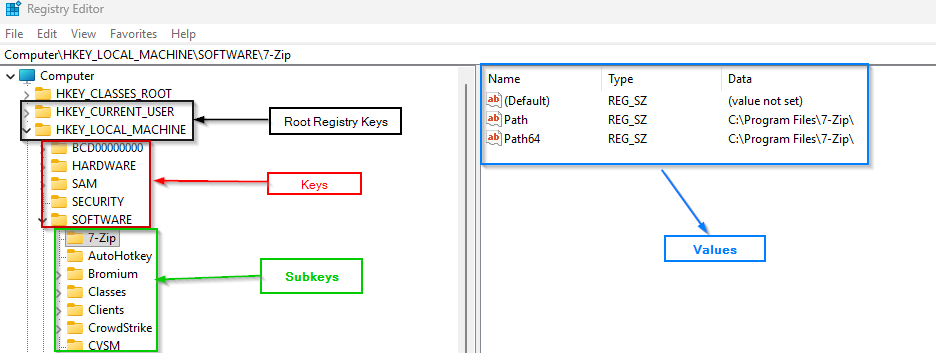
Root registry keys
Root registry keys are the main folders of the Windows Registry:
HKEY_CURRENT_USER (HKCU) - Stores settings for the person currently logged in, such as desktop wallpaper, theme colours, and user preferences.
HKEY_LOCAL_MACHINE (HKLM) - Contains settings that apply to the whole computer and all users, including hardware drivers and software settings.
Keys, subkeys and values
Keys - Keys are like folders in the Windows Registry that organise different types of system and software settings. Example: HKLM\SOFTWARE
Subkeys - Subkeys are smaller folders inside keys that further break down and organise those settings. Example: HKLM\SOFTWARE\7-Zip
Values - Values are the actual pieces of data stored inside keys or subkeys that tell Windows what settings to use. Example: HKLM\SOFTWARE\7-Zip\Path64
Disclaimer: Do NOT change any values within the registry if you don’t know what they do, as this can destroy your computer, making it unusable.
What are registry hives?
The difference between Windows Registry hives and registry keys is that a hive is a physical file on your disk, while keys are the logical, hierarchical folders you navigate within the Registry. These physical files are located at C:\Windows\System32\config\ and they appear in the Registry under HKLM\.
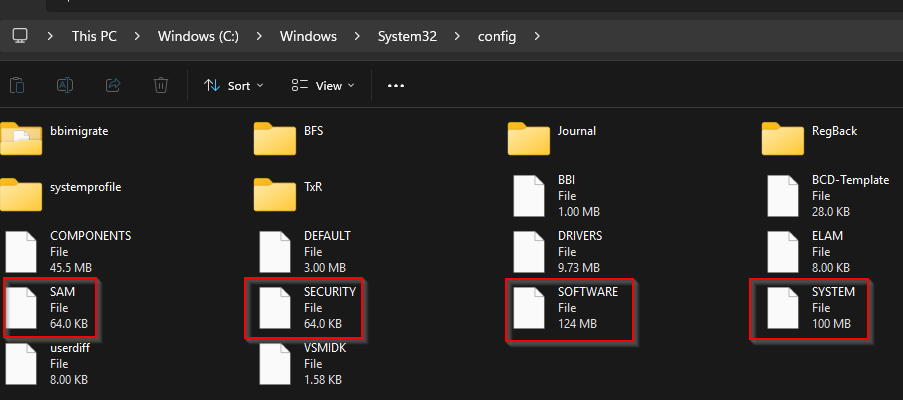
SYSTEM - Stores hardware and system information.
SOFTWARE - Acts as a central database or a “settings filing cabinet” for all programs installed on your computer. It is where Windows and your applications store instructions on how to run, where they are installed, and how they should behave for all users on that computer.
SAM - The Security Accounts Manager (SAM) is a highly secure, locked-down database file in Windows that acts as the “password diary” for your computer. When you log in, SAM checks the username and password you type against its database to verify your login.
NTUSER.DAT - NTUSER.DAT tracks user activity, like typed paths, recently opened files, and executed applications. It is pretty much the user’s digital activity all balled up into one file. It is located at
C:\Users\[Username]\and loads into the root key HKCU, since it is user-specific rather than machine-wide.
Proof of concept: static analysis
To put the techniques into practice, let’s look at a sample called Evil.exe, starting with static analysis.
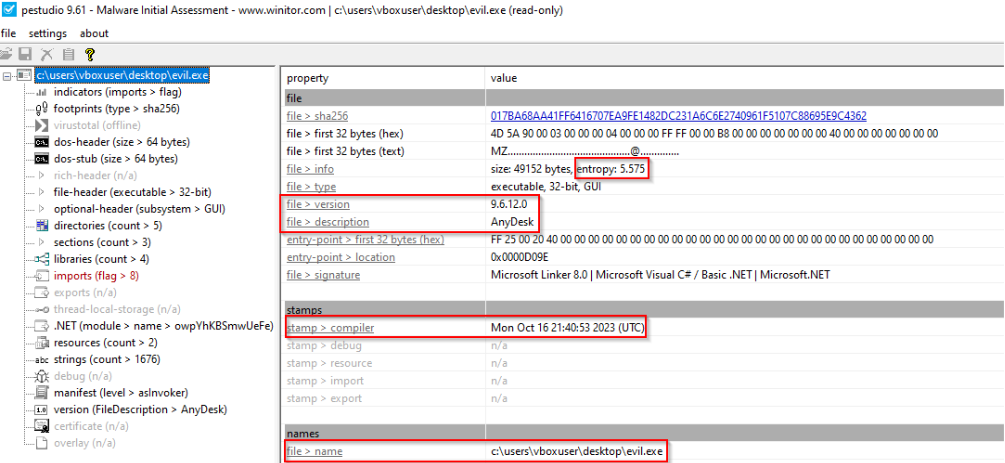
Metadata (PEStudio results)
| Field | Value |
|---|---|
| Filename | Evil.exe |
| SHA1 | c4a52c63908a1df3235c81fe1cd40f52214221bb |
| Entropy | 5.575 |
| Type of malware | RAT |
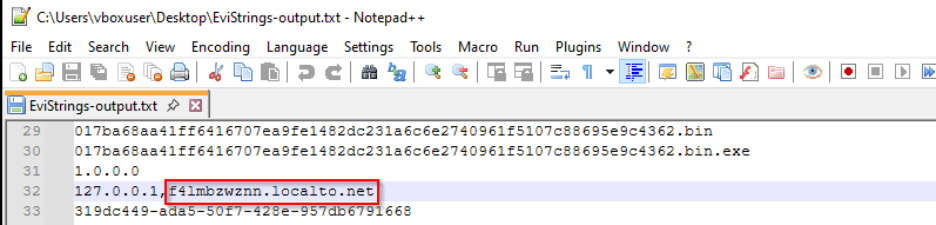
Strings (Strings / FLOSS results)
Possible domain connections - The extracted strings include what looks like a domain the malware may connect to.
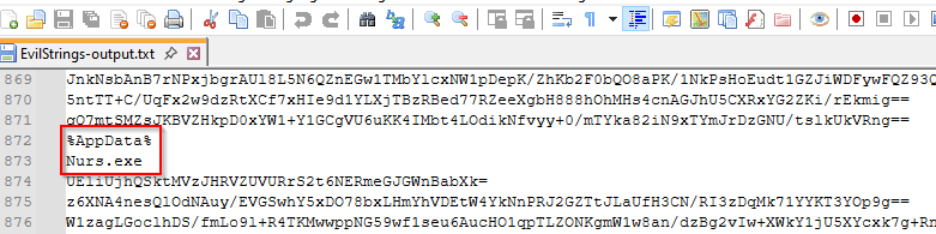
Possible file creation - AppData (short for Application Data) is a hidden folder in Windows that acts as a personal storage locker for your apps and programs. Think of it as the settings and preferences notebook that every program uses to remember how you like to use it. From the extracted strings, we can see AppData. We can also see another filename, “Nurs.exe”, which makes us wonder: what if this file, Nurs.exe, is located in AppData?
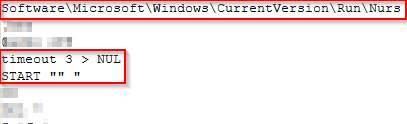
Possible persistence - The Registry Run value observed here is a common Windows key used to automatically launch applications, scripts, or commands every time a user logs in. This legitimate Windows function is commonly abused by attackers to blend in and create persistence on an asset.
The string timeout 3 pauses execution for exactly three seconds; once the three seconds have finished, it starts something with an unknown or invisible value.
Proof of concept: dynamic analysis
With the static clues in hand, the next step is to run Evil.exe inside the sandbox and watch what it actually does.
System monitoring (ProcMon results)
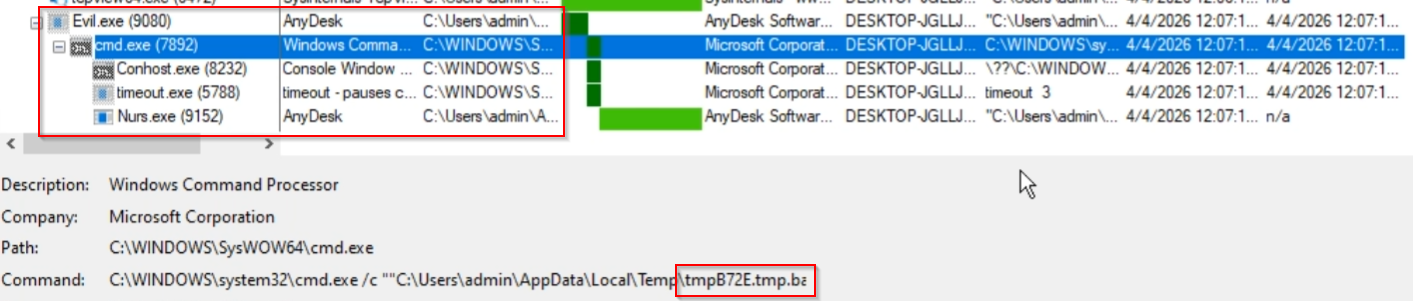
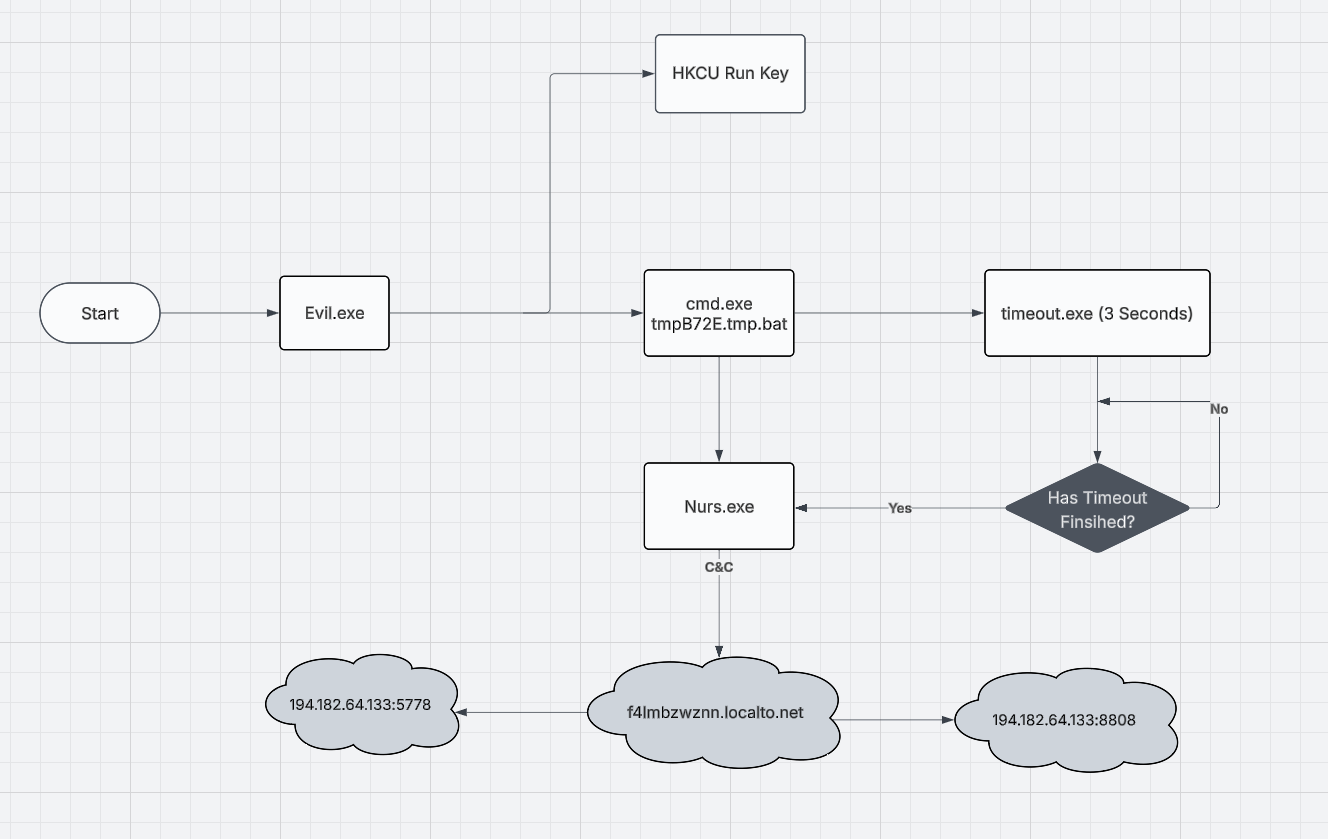
Execution chain - ProcMon’s process tree shows Evil.exe spawning cmd.exe, which runs a batch file (tmpB72E.tmp.bat) from the user’s Temp folder. That in turn launches timeout.exe and then Nurs.exe.
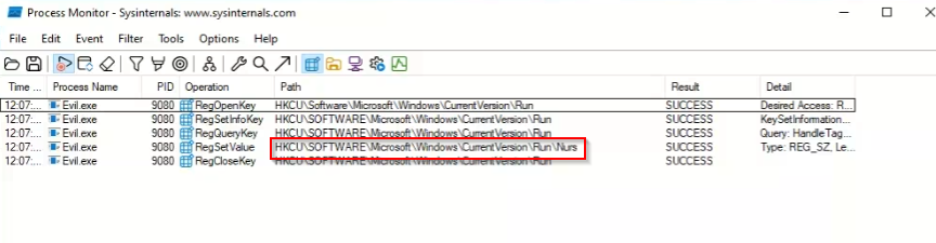
Persistence - ProcMon also captures Evil.exe setting a value named Nurs under the HKCU\Software\Microsoft\Windows\CurrentVersion\Run key, confirming the persistence we suspected from the strings.
Network monitoring
Wireshark results - C&C domain - Wireshark shows repeated DNS queries for the domain f4lmbzwznn.localto.net, resolving to 194.182[.]64.133.
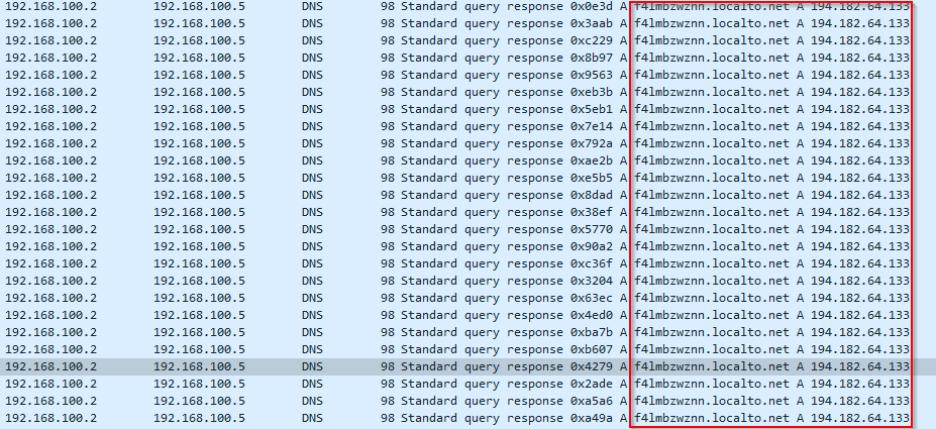
TCPView results - C&C IPs and ports - TCPView shows Nurs.exe reaching out to 194.182[.]64.133 on ports 5778 and 6608.

Execution chain flowchart
Putting it all together: Evil.exe sets the HKCU Run key and launches cmd.exe (tmpB72E.tmp.bat), which runs timeout.exe for three seconds. Once the timeout has finished, Nurs.exe starts and communicates with the C&C domain f4lmbzwznn.localto.net at 194.182[.]64.133:5778 and 194.182[.]64.133:6608.
Windows evidence discovery
What is evidence discovery?
Windows evidence discovery (often called Windows forensics) is the process of acting like a “digital detective” to uncover what a user or attacker did on a Windows computer, by grabbing the artifacts and breadcrumbs an attacker leaves behind.
How does it play a role in malware analysis?
Evidence discovery plays a huge role in malware analysis, as it involves searching through the places that store this information, like system files, temporary files, and system settings that Windows automatically creates. The main source of evidence for the presence and execution of these files is the Windows Registry.
Evidence you can gather
Filename
File location
Application execution
Timestamps
Key registry execution artifacts and popular/common tool used to extract them
| Artifact | Tool | Location |
|---|---|---|
| Prefetch | PECmd.exe | C:\Windows\Prefetch |
| Amcache | AmcacheParser | C:\Windows\AppCompat\Programs\Amcache |
| NTUSER.DAT (Program Compatibility Assistant, RunMRU) | RegRipper | C:\Users\<User>\NTUSER.DAT |
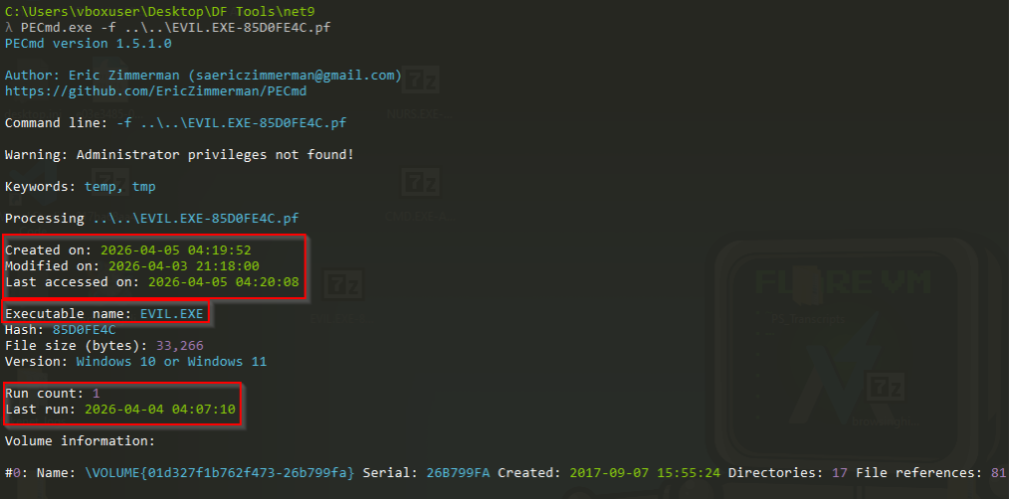
Prefetch - Prefetch is used to speed up application launches on a Windows OS. It has a background monitoring process that runs for approximately 10 seconds when a program starts. During this time, it monitors the execution of the program to see what files and resources the program interacts with, and gathers this information. So when you run the program again, that information is already stored and it runs faster. The value Prefetch provides:
Looking for a specific file that was run on the system
How many times it ran
When it was last run
What files and directories the file interacted with
Amcache - Windows Amcache is a hidden, behind-the-scenes diary that Windows keeps about every program (executable file) that has ever been installed or run on your computer. Think of it as a detailed inventory list managed by the operating system.
Program Compatibility Assistant (PCA) service - The PCA wasn’t originally made for identifying the execution of a file; its main purpose is to detect and resolve compatibility issues with older or legacy applications. However, it can be used as strong evidence of a file’s execution on Windows computers.
RunMRU (Most Recently Used) - RunMRU is the “history list” for the Windows Run dialog box. Think of it as the “recently typed” list that appears when you press Windows Key + R to run a command, application, or open a file. The Run dialog box is used for legitimate reasons, but threat actors can abuse it by manipulating users into entering commands on their machine.
Proof of concept: evidence discovery
Now we flip perspective. Instead of watching the malware run, we look at the breadcrumbs of what Evil.exe and Nurs.exe left behind on the host.
Prefetch
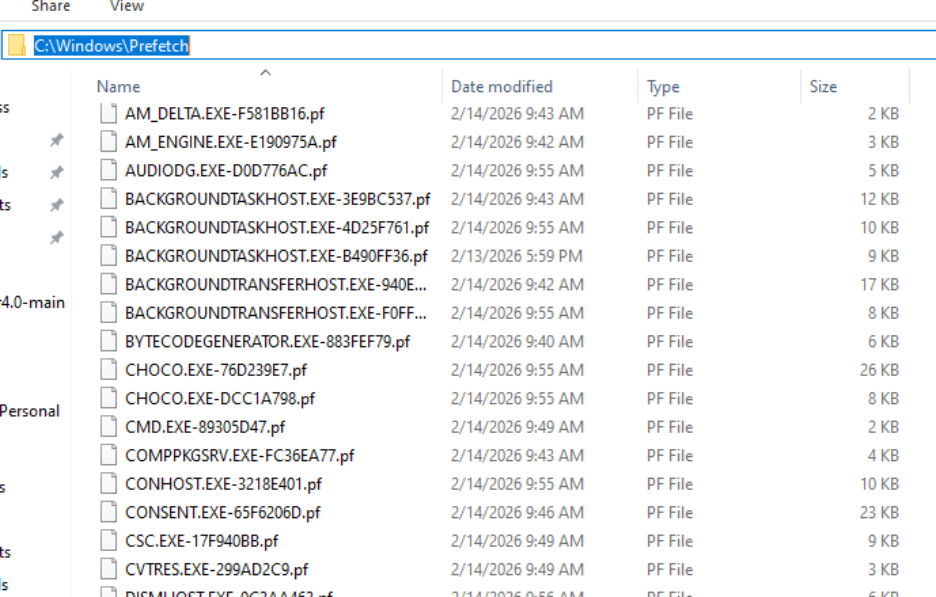
Location and file extension - Prefetch files live in C:\Windows\Prefetch and use the .pf extension, named after the executable they track.
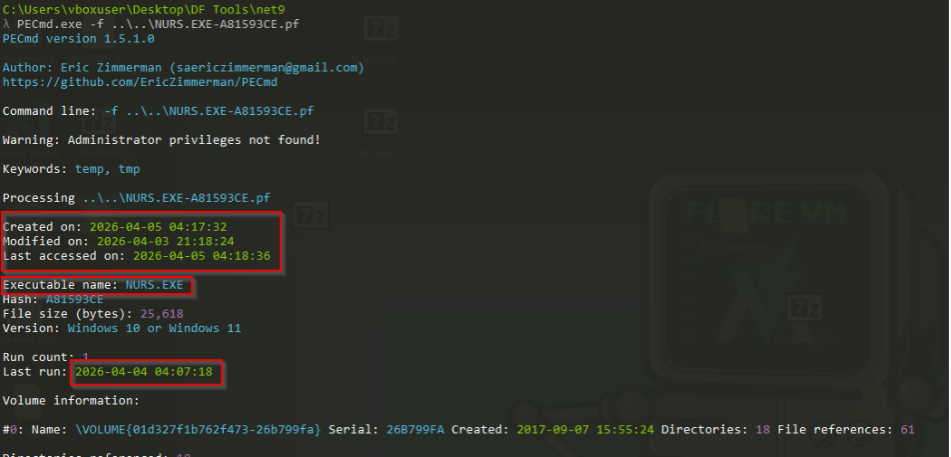
Extraction/parse of Nurs.exe - Parsing NURS.EXE-A81593CE.pf with PECmd shows the executable name, a run count of 1, and a last run time of 2026-04-04 04:07:18.
Extraction/parse of Evil.exe - EVIL.EXE-85D0FE4C.pf shows a run count of 1 and a last run time of 2026-04-04 04:07:10, just seconds before Nurs.exe. The files referenced in the Prefetch data include the batch file tmpB72E.tmp.bat in the Temp folder and timeout.exe, matching the execution chain from dynamic analysis.

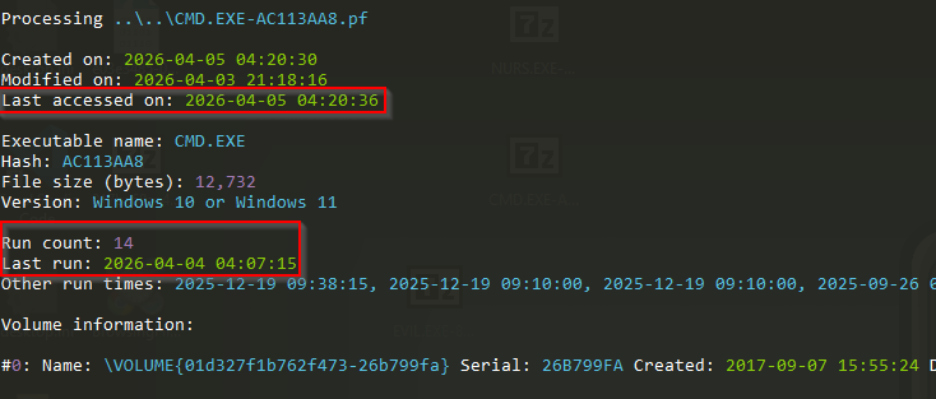
Extraction/parse of cmd.exe - CMD.EXE-AC113AA8.pf shows a last run time of 2026-04-04 04:07:15, sitting right between Evil.exe and Nurs.exe in the timeline.
Amcache
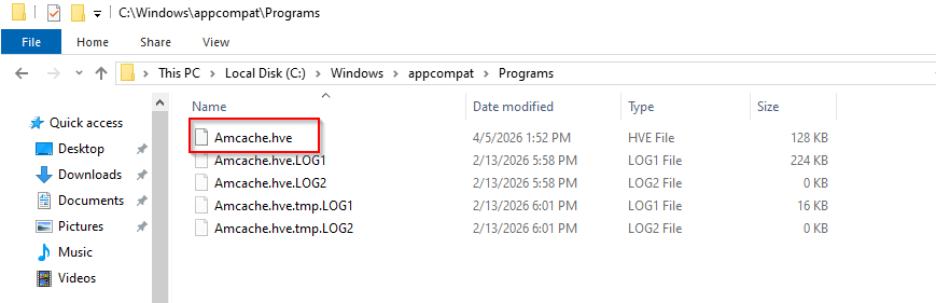
Location of Amcache - The Amcache hive is stored at C:\Windows\appcompat\Programs\Amcache.hve.
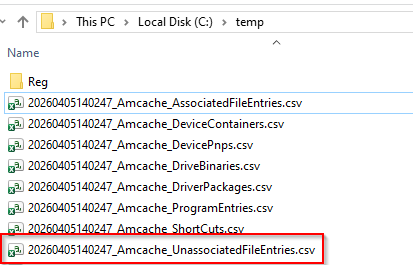
Parsing/extracting Amcache - AmcacheParser parses the hive and saves the results as CSV files to C:\temp.
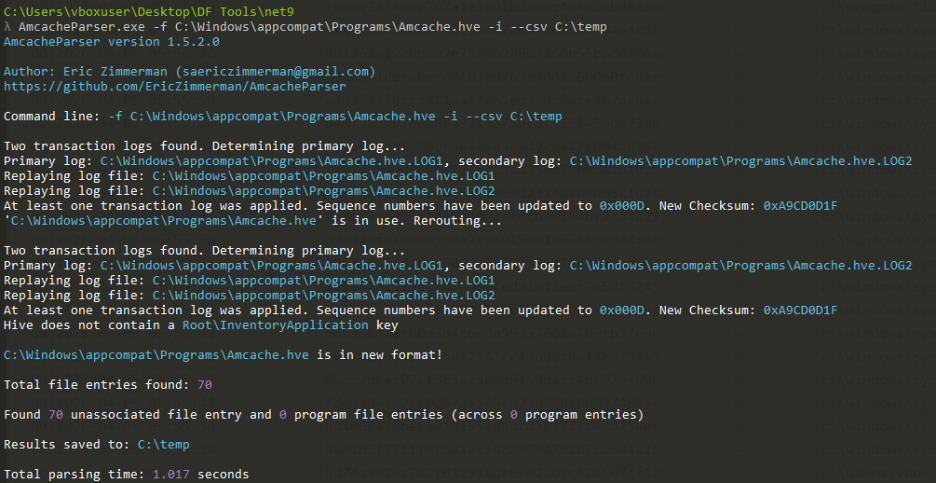
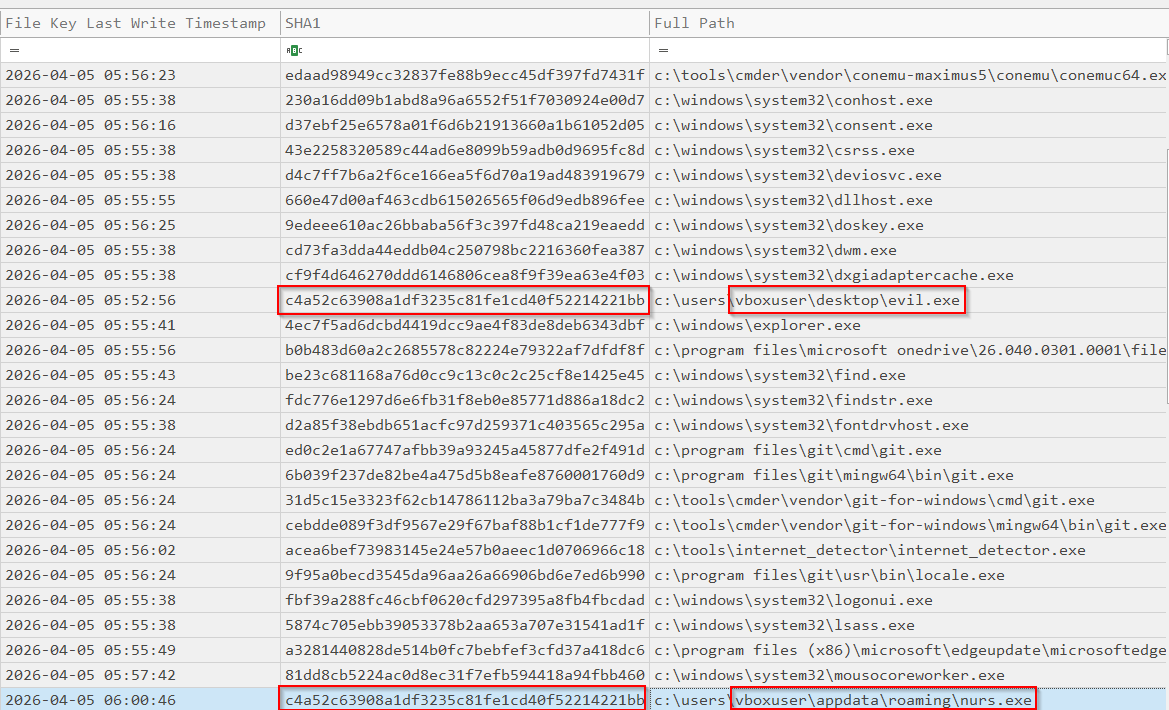
Results of Amcache - The UnassociatedFileEntries output lists both c:\users\vboxuser\desktop\evil.exe and c:\users\vboxuser\appdata\roaming\nurs.exe, along with their SHA1 hashes. This confirms our earlier question: Nurs.exe really was dropped into AppData.
NTUSER.DAT
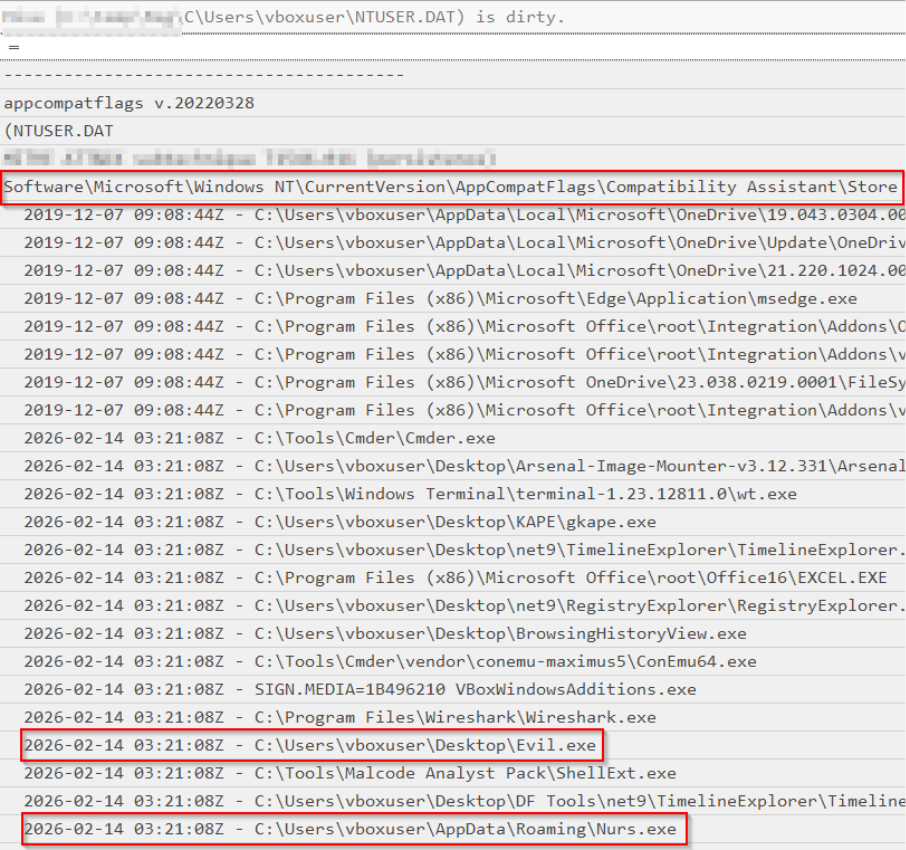
PCA evidence - RegRipper’s output for the Compatibility Assistant Store key in NTUSER.DAT lists both C:\Users\vboxuser\Desktop\Evil.exe and C:\Users\vboxuser\AppData\Roaming\Nurs.exe, giving us further evidence of execution.
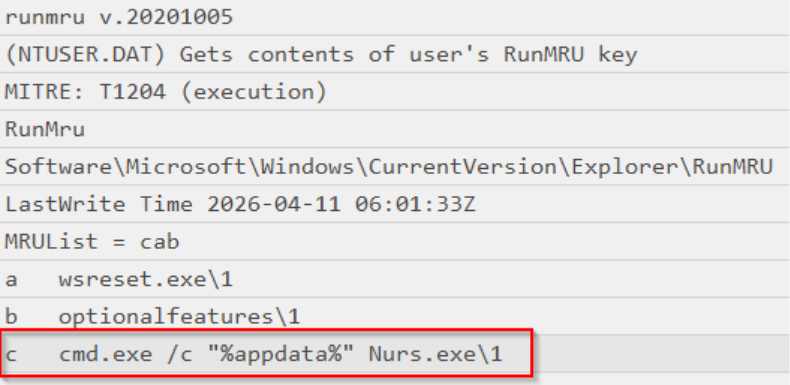
RunMRU - The RunMRU key shows the command cmd.exe /c “%appdata%” Nurs.exe was entered through the Run dialog box.
Wrapping up
Malware analysis and evidence discovery are two sides of the same investigation. Static and dynamic analysis told us what Evil.exe does: it drops Nurs.exe into AppData, sets a Run key for persistence, and calls out to its C&C server. Evidence discovery then proved it happened on the host, with Prefetch, Amcache and NTUSER.DAT each recording the filenames, locations, execution and timestamps.
Thank you for reading!